AI Assistance Overview
AI assistance is best for organizing, extracting, and rephrasing your input, but the final decisions still come back to your own tasks and judgment.
A Real‑World Example
Section titled “A Real‑World Example”For instance, AI can help break a task title into projects, next steps, and reminders; but whether to do it today, or whether it’s important, is still up to you.
AI Settings Should Be Reviewed by Use Case
Section titled “AI Settings Should Be Reviewed by Use Case”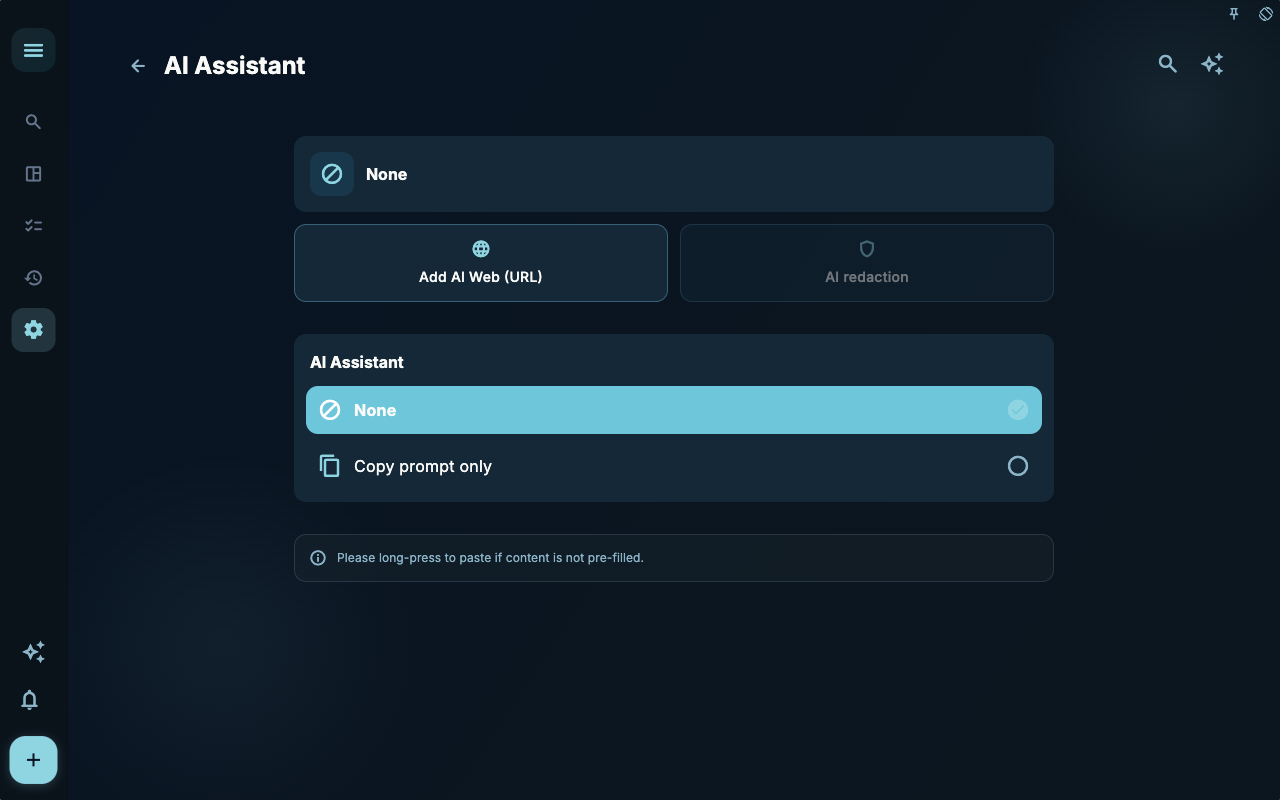
The AI Assistant settings determine which assistance features are enabled by default. Here, focus on “whether to use AI” and “which scenarios allow AI involvement” — don’t fine‑tune details right away.
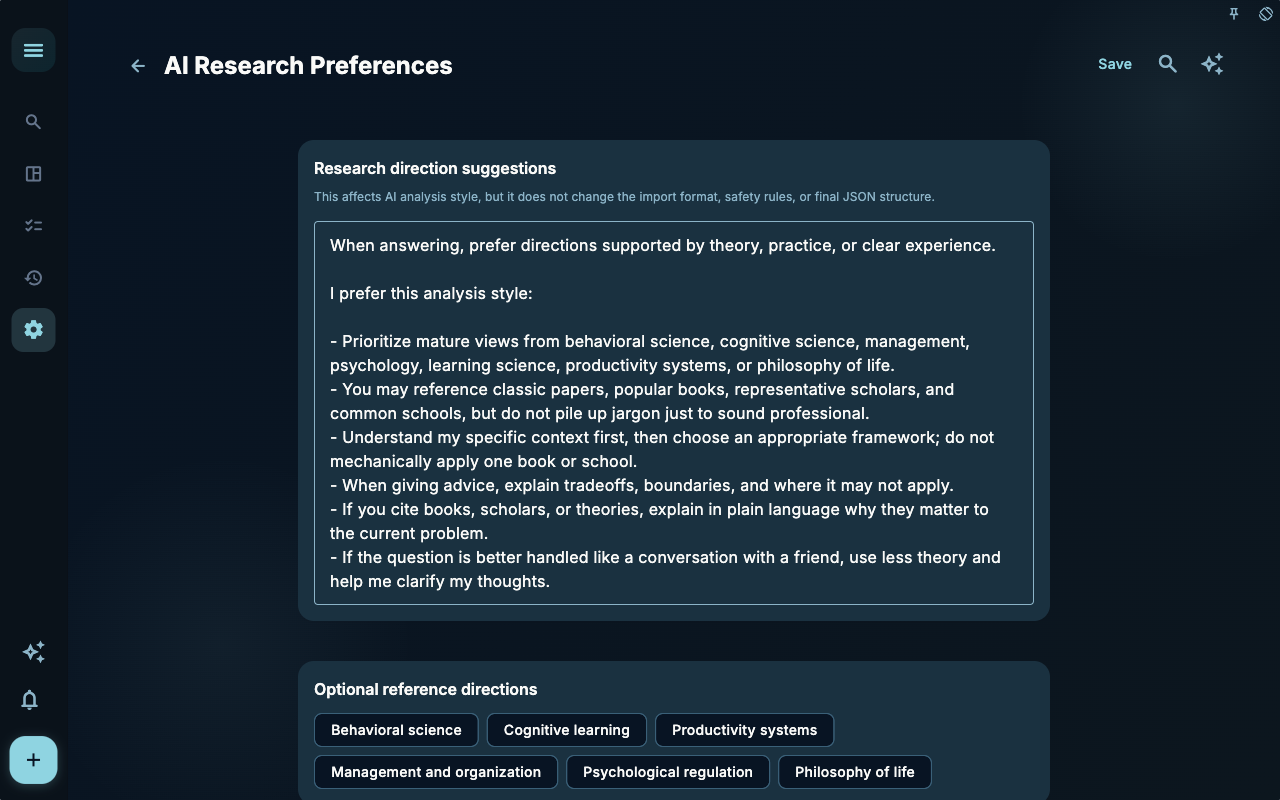
Research preferences are more like a work‑habit guide for the AI. You can use them to reduce the cost of repeatedly explaining context, but still need to check each output against the current task.
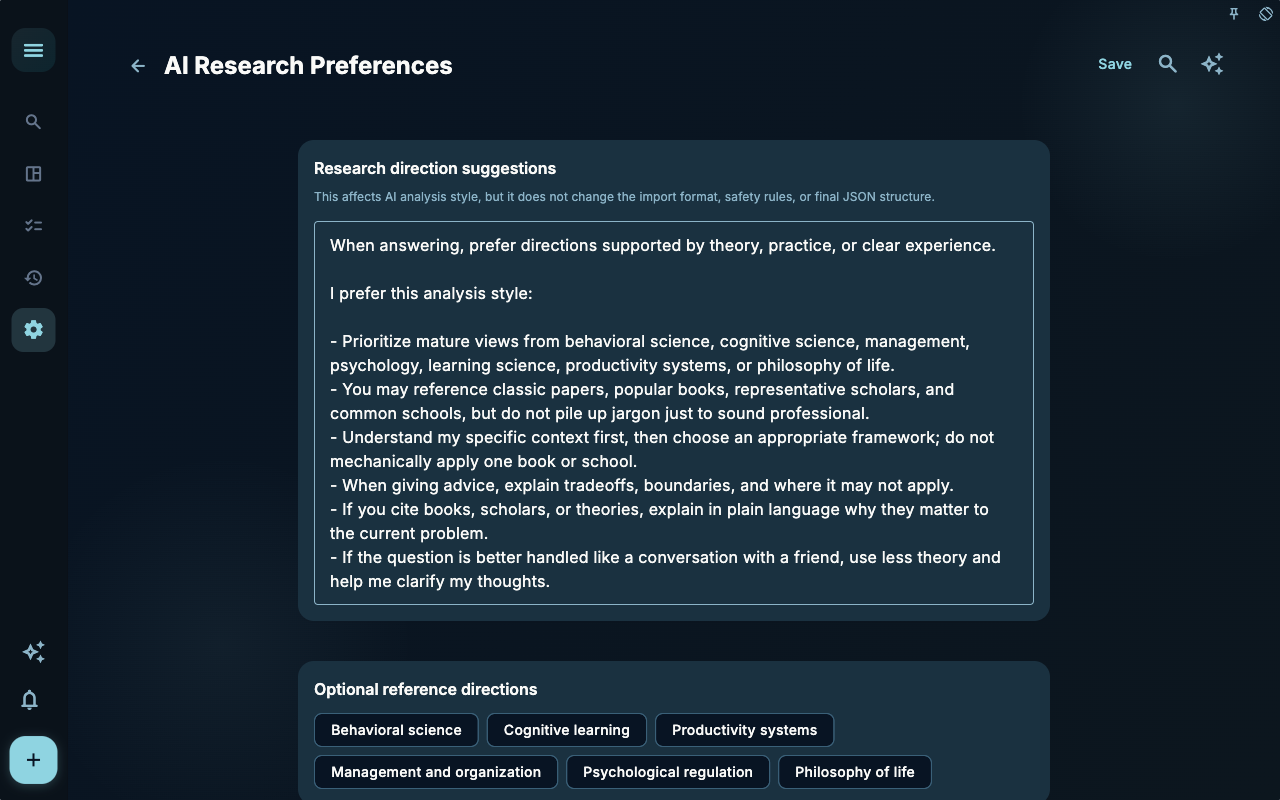
Prompt settings are useful when the default responses don’t match your writing style or workflow. They affect how AI organizes content, but shouldn’t be treated as task planning itself.
How to Decide What to Do Next
Section titled “How to Decide What to Do Next”| If you encounter… | Start by looking at… | Then… | | --- | --- | --- | | Not sure where to begin | The current page title and main entry point | Pick just one item related to your current goal | | Action didn’t produce the expected result | Status, empty state hints, access history, or sync progress | Go back one level and check step by step | | Worried about data impact | Backup, sync, account, or permission instructions | Stop, confirm the scope, then continue |
Boundaries
Section titled “Boundaries”Let AI do the organizing first, then you confirm the result. This sequence is the safest.
Next Steps
Section titled “Next Steps”After reading this section, return to the task you were working on and pick just one small action to continue: record an input, check a status, or open a relevant setting to complete a confirmation.