Task System Overview
In GranoFlow, a task doesn’t have to be a complete file written all at once. A better approach is: first jot down what you need to do, then decide whether to assign a date, put it into a project, break it into steps, or leave a review after completion.
Many task tools force you to fill in a lot of fields from the start. GranoFlow’s task system is more like a workbench: spread out your sticky notes, keep today’s tasks within reach, leave traces after completion, and put away what’s not needed.
Task List Holds Ongoing Work
Section titled “Task List Holds Ongoing Work”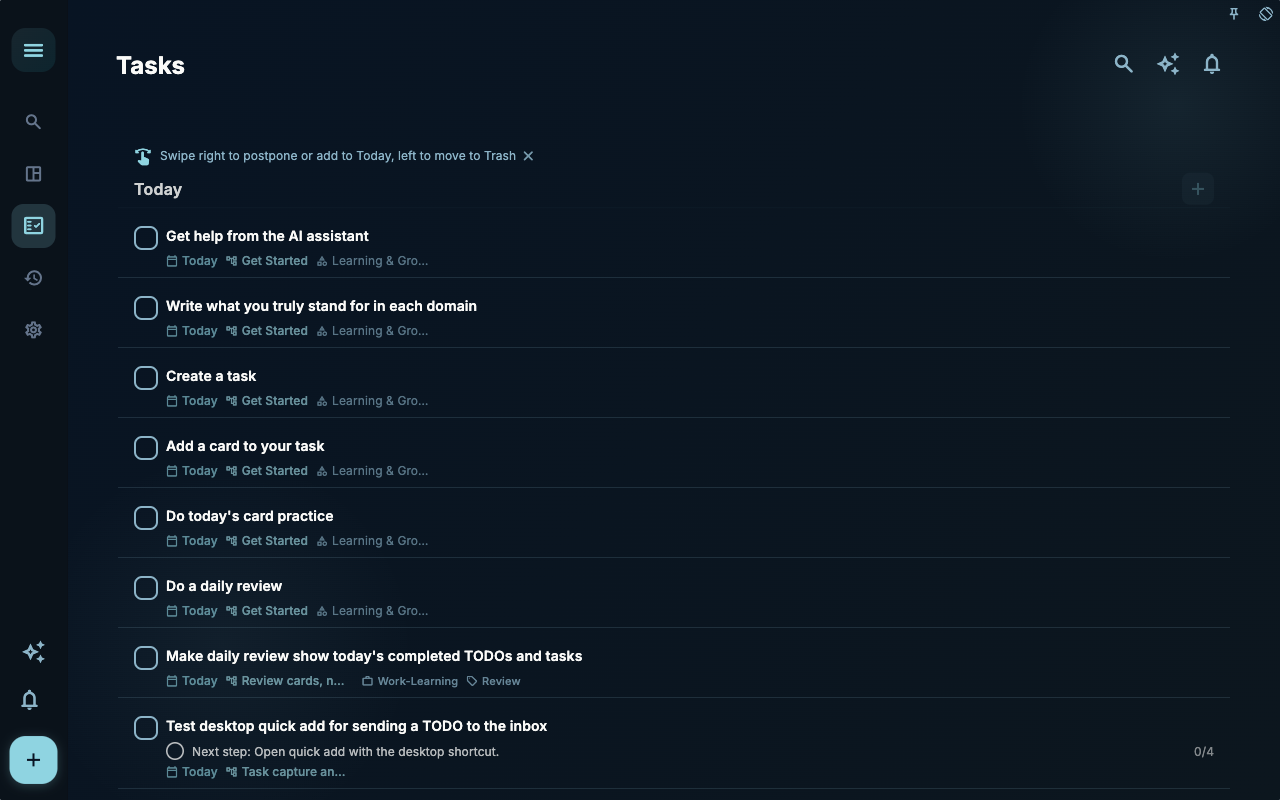 The task list is best for viewing tasks you’ve decided to move forward with. Here you’ll see tasks grouped by timeframe, such as Today, Tomorrow, This Week, This Month, or Later.
What this image really shows isn’t the number of buttons, but the state of tasks once they’re in the list: they’re no longer just ideas, but have dates, order, or a next step. From here you can open a task to fill in more fields, or start focusing or complete it directly from the list.
From Idea to Completion
Section titled “From Idea to Completion”You don’t have to go through this line all at once. Often, you only need to complete the first step: write it down.
How to Divide Tasks, Projects, and Areas
Section titled “How to Divide Tasks, Projects, and Areas”| Question you’re asking | Better placed in | Example | | --- | --- | --- | | What exactly to do now | Task | Draft Chapter 3, Contact moving company | | Which stage goal does this set of tasks serve | Milestone | Recording completed, Launch check passed | | Which goal to advance in this period | Project | Publish course, Finish moving | | Which long-term direction does this goal belong to | Area | Study, Work, Health |
Not every task needs to be linked upward. For small things that can be done directly, writing them as tasks is enough; for goals that will last a while and generate multiple tasks, put them into projects.
The Difference Between Regular To-Dos and Project Tasks
Section titled “The Difference Between Regular To-Dos and Project Tasks”A regular to-do answers “What should I do next?” A project task answers “Which stage goal does this step serve?” Both matter, but one should not replace the other.
| Task type | Good examples | Typical handling | | --- | --- | --- | | Inbox task | Buy dental floss, reply to a friend, capture an idea | Capture it first, then decide whether to add a date or complete it directly | | Today task | Send meeting notes before 16:00, organize course notes tonight | Add a date, then let it enter the daily review after completion | | Project task | Finish the script for lesson 3, verify the sync recovery flow | Link it to a project and milestone, and add nodes when needed | | Historical entry | Record last week’s completed release check | Backfill only when it affects a review or project record |
If something takes only a few minutes, you do not need to create a project just to make it look organized. If it repeatedly creates follow-up actions, or needs review and handoff after completion, it is a better fit for a project.
Why only plan today and tomorrow in detail
Section titled “Why only plan today and tomorrow in detail”GranoFlow doesn’t encourage you to fill every future day with plans. The future will change, and tasks will change too; scheduling next week and next month too finely often just moves the maintenance cost of the plan to today.
So the task list makes today and tomorrow more specific: today you decide what to do right now, tomorrow you leave a clear but not heavy next step. Tasks further ahead can be placed in this week, this month, next month, or later, and then finely planned when the time gets closer.
Task Statuses
Section titled “Task Statuses”| Status | When to use | Result | | --- | --- | --- | | To Do | Not started | Stays in the corresponding view awaiting processing | | In Progress | Currently working on | Can become the current task | | Completed | Already done | Records completion time, can enter review | | Archived | No need to focus on for now | Keeps record but doesn’t take up the current list | | Trash | Deleted but not emptied | Still possible to restore |
Task details are for adding task information and do not provide “Start Focus” or “Complete Task” buttons. When the work is done, return to the task list and select its checkbox. To start focusing, use the focus entry currently provided by the app.
Getting Started for the First Time
Section titled “Getting Started for the First Time”Click +, write down the one thing you most want to move forward today, then save. Don’t rush to create projects, add tags, or break it down into steps.
When you find that this task needs ongoing attention, then add it to a project; when you find the task is too large, then break it into subtasks; when you complete it, then leave a review. The value of a task system is not to have everything neatly organized from the start, but to make the next step easier to pick up.
Next Steps
Section titled “Next Steps”If you just want to jot it down for now, continue to “Inbox”. If you already know what to do, continue to “Creating and Editing Tasks”.