Completion, Archiving, and Trash
When a task disappears from the current list, it doesn’t necessarily mean it’s lost. It may just be completed, archived, moved to the trash, or shifted due to date and filter changes.
This chapter first clarifies the three states: Completed means the task is done, Archived means it’s temporarily put aside, and Trash means it has been deleted but not yet permanently cleared.
Completed: Keep a Record of Completion
Section titled “Completed: Keep a Record of Completion”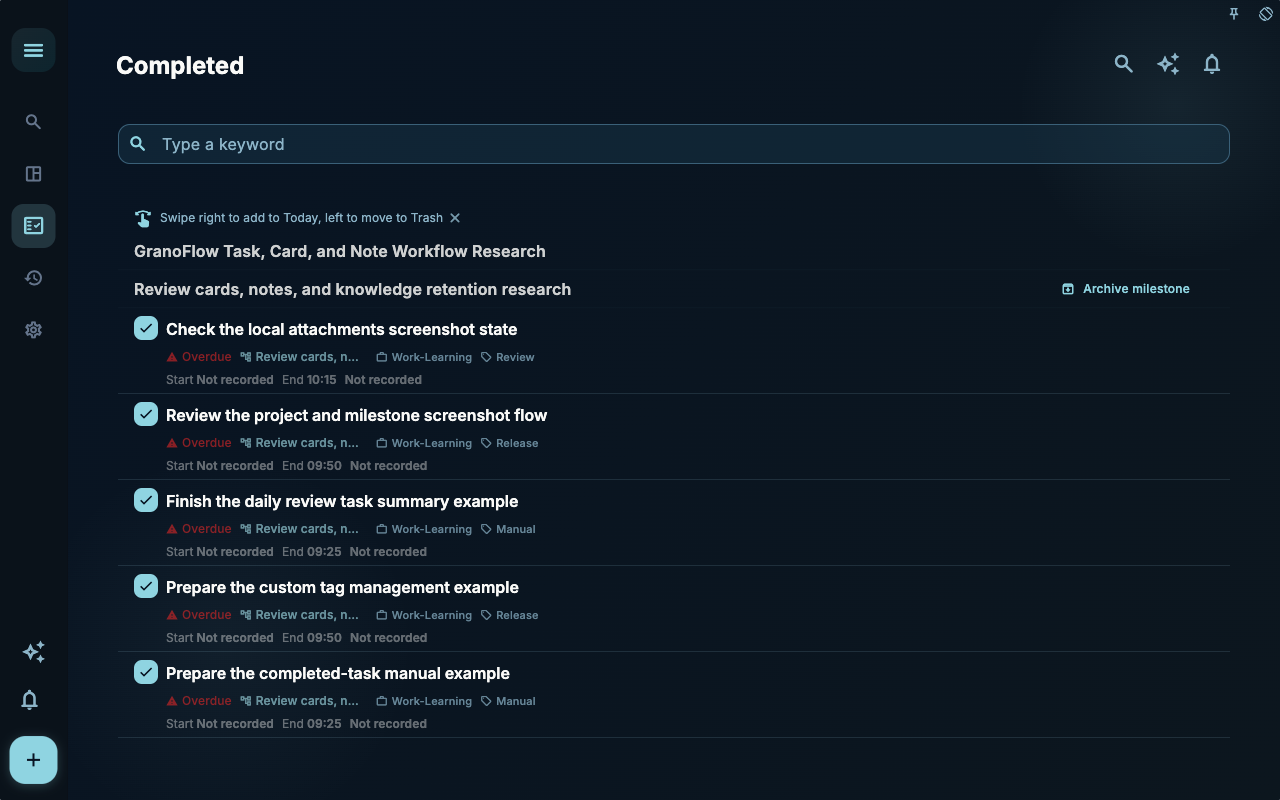 The Completed List saves tasks that have been done. It is not a trash bin but a record of your completions: you’ll use these records for daily reviews, task retrospectives, and checking what you did on a particular day.
When a task is completed, it typically:
- Moves out of the current to-do list
- Records the completion time
- Appears in the Completed view
- Is used for daily review statistics
- Shows a task review entry in the details
Select the task’s checkbox in the task list to complete it. If the task is currently in focus mode, completing it will first end the current focus session, then mark the task as completed and clear the current task.
Calibrate time after completion
Section titled “Calibrate time after completion”When a task is first completed, the system records a completion time. This time allows the task to appear in the completed view and daily review, but it may not equal the actual start and end times.
If you want a more accurate review, you can open the completed task details, go to time tracking, and modify the start time and completion time. For example, change the record to “15:10 started organizing materials, 16:05 ended” instead of only keeping the moment you clicked the complete button.
| Situation | Worth calibrating? | | --- | --- | | Forgot to start, but actually worked for a while | Worth it | | Forgot to mark as complete in time | Worth it | | Just a small task that took a few minutes | Can skip | | Want the time blocks in the daily review to be closer to reality | Worth it |
The start time must be earlier than the completion time, and the completion time cannot be set in the future. The daily review calculates invested time based on task time blocks; if two task times overlap, the overlapping portion will not be counted twice.
Archived: Tucked Away but Kept
Section titled “Archived: Tucked Away but Kept”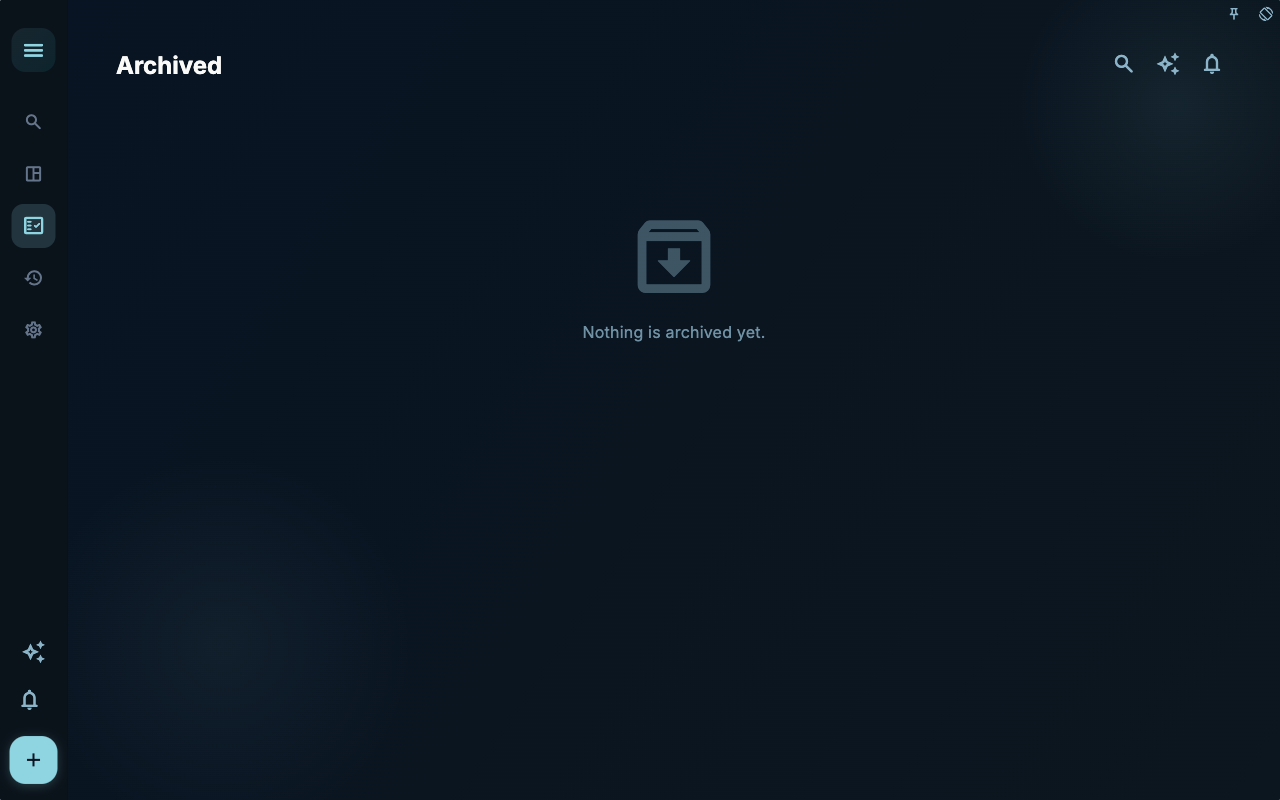 Archiving is suitable for tasks you temporarily don’t want to see in the current list but may need to know they existed later. For example, tasks from old projects, items put on hold, or content that has expired but still holds reference value.
Archiving and completing are not the same thing:
| Action | Meaning | Included in completion stats? | | --- | --- | --- | | Complete | The task is truly done | Yes | | Archive | Temporarily hide from the current view | No |
The archived view only handles task archiving. Card archiving and task archiving are not the same thing; to view archived cards, you need to go to the filter status in card management.
Trash: You Can Recover Deleted Items
Section titled “Trash: You Can Recover Deleted Items”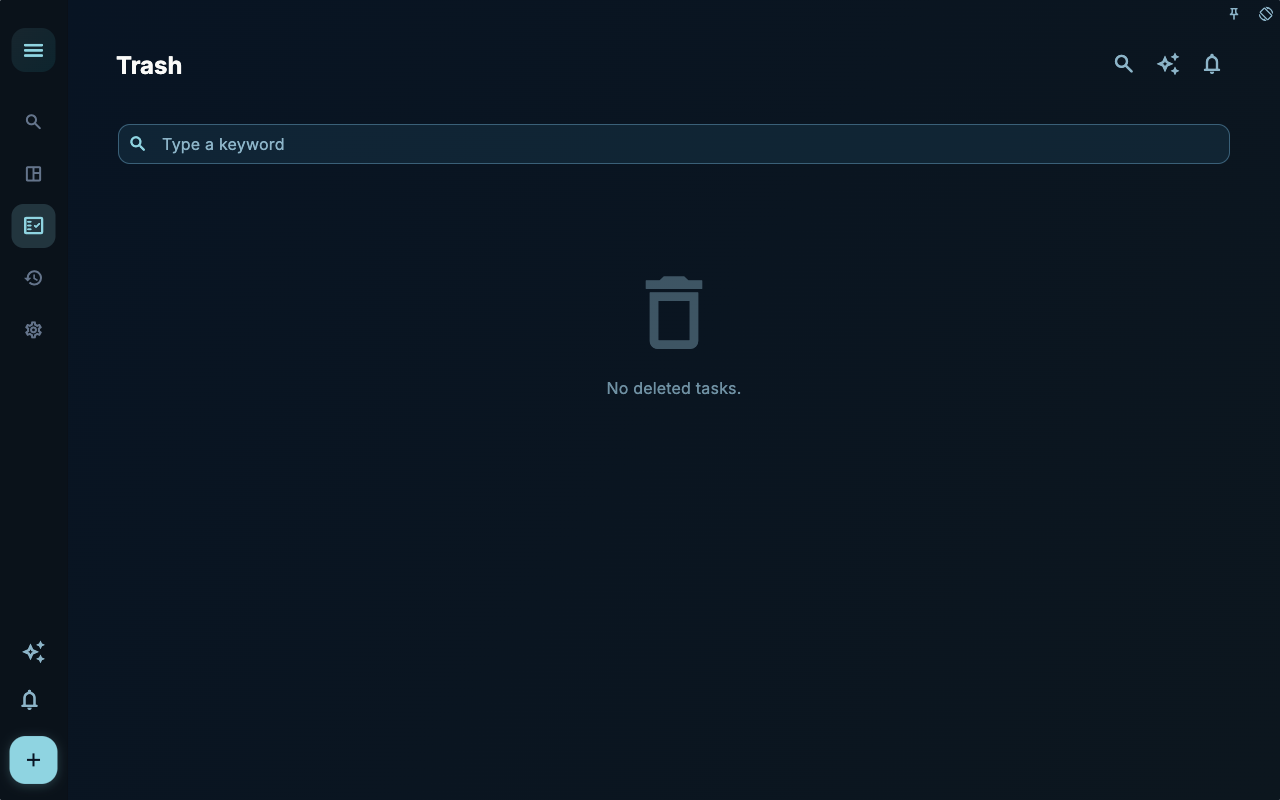 After you delete a task, it goes to the Trash. As long as the Trash hasn’t been emptied, you can still view or restore it.
When restoring a task that originally belonged to a deleted project or milestone, GranoFlow lets you choose: restore the original project and milestone together, or restore only the task to the inbox. If you restore only the task, it becomes a regular inbox task with no project, no milestone, and no date, and you can reorganize it later.
When you can’t find a task, check in this order
Section titled “When you can’t find a task, check in this order”| Where to check first | Possible reason | | --- | --- | | Current filter conditions | Only shows today, a tag, or a project | | Corresponding date | The task was scheduled for a specific day | | Project page | The task is grouped into a project or milestone | | Completed | The task has been done | | Archived | The task has been put away | | Trash | The task was deleted but not yet emptied |
Most “not found” cases are not about loss—the task has just moved to another view.
Task review after re-enabling
Section titled “Task review after re-enabling”If you wrote a task review after completing a task, and later uncomplete or re-enable the task, the existing review will not be cleared. When the task is not completed, the task details will not display the review; once the task is completed or archived again, the review will reappear and can be edited.
Next Steps
Section titled “Next Steps”After finishing up the task, if any experience is worth reusing, you can continue to the review and card chapters to turn a one‑time completion into a reusable judgment.