Tags
A project tells you which goal a task belongs to; a tag tells you what common characteristic tasks share. For example, “Fitness App Development” is a project, while “Waiting for reply”, “Low energy”, “Design draft” – these statuses or types that appear across projects – are better suited as tags.
More tags aren’t always better. The real value of a tag is whether it actually helps you narrow things down when filtering.
What tag management is for
Section titled “What tag management is for”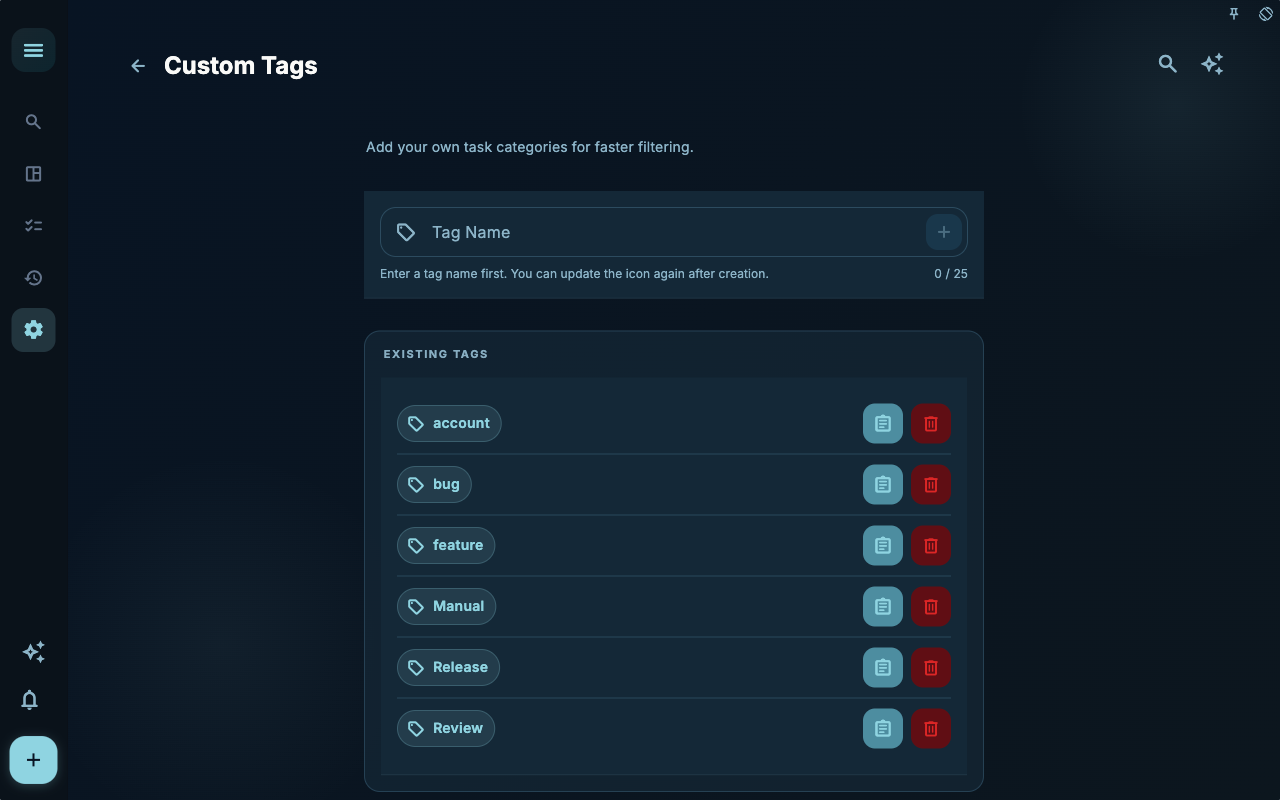
The tag management page is for handling global tags: adding, editing, deleting, or configuring templates for custom tags. In the screenshot, note the list relationship: a tag isn’t a private field for a single task – it’s a classification that can be reused by many tasks.
If you just need to add an existing tag to the current task, working in the task details is enough. Go into tag management only when you need to rename tags, update templates, or delete tags.
What tags are good for
Section titled “What tags are good for”| Purpose | Tag examples | Why it works |
| --- | --- | --- |
| Energy or context | Low energy, Deep work, Fragment time | Helps you pick tasks based on your current state |
| Waiting status | Waiting on someone, To confirm | Track stuck items across projects |
| Task type | Phone, Writing, Design | Batch-process similar actions easily |
| Temporary focus | This week's focus, Later | Short-term filtering without creating a project |
Avoid copying project names as tags. If a task already belongs to a project, adding the same name as a tag usually just clutters your categories.
Custom tag templates
Section titled “Custom tag templates”Custom tags can optionally carry a description template and a node template. Later, when a task is assigned this tag, GranoFlow copies the template content into the task’s own description and nodes – but only if the task doesn’t already have them.
The copy happens once. After that, the content belongs to the task itself; updating or deleting the tag template later won’t automatically change tasks that were already created.
| Tag example | What the template is good for |
| --- | --- |
| account | Platform name, URL, email, phone, third-party login, notes |
| bug | Steps to reproduce, expected result, actual result |
| feature | User value, use scenario, acceptance criteria |
If a task already has a description or nodes, the template is skipped so it won’t overwrite existing content.
What happens when you delete a tag
Section titled “What happens when you delete a tag”Deleting a tag does not delete tasks. It only removes that tag from any tasks that were using it.
What to do when you have too many tags
Section titled “What to do when you have too many tags”When tags pile up, filtering becomes almost as broad as not filtering at all. Do these three things regularly:
- Merge tags with similar meaning
- Delete tags that are no longer in use
- Move project names out of tags and let project management handle them
Next steps
Section titled “Next steps”If you want to quickly add a tag when creating a task, go back to “Writing tasks in natural language” and use #tagname directly.