Decks, Import & Export
Decks keep related cards together. They’re great for grouping a topic — like “Task collection & inbox workflow research” or “Getting to know GranoFlow.” But a deck shouldn’t just be another file cabinet: the clearer the deck, the easier it is to remember why those cards belong together when you practice.
How to read the deck list
Section titled “How to read the deck list”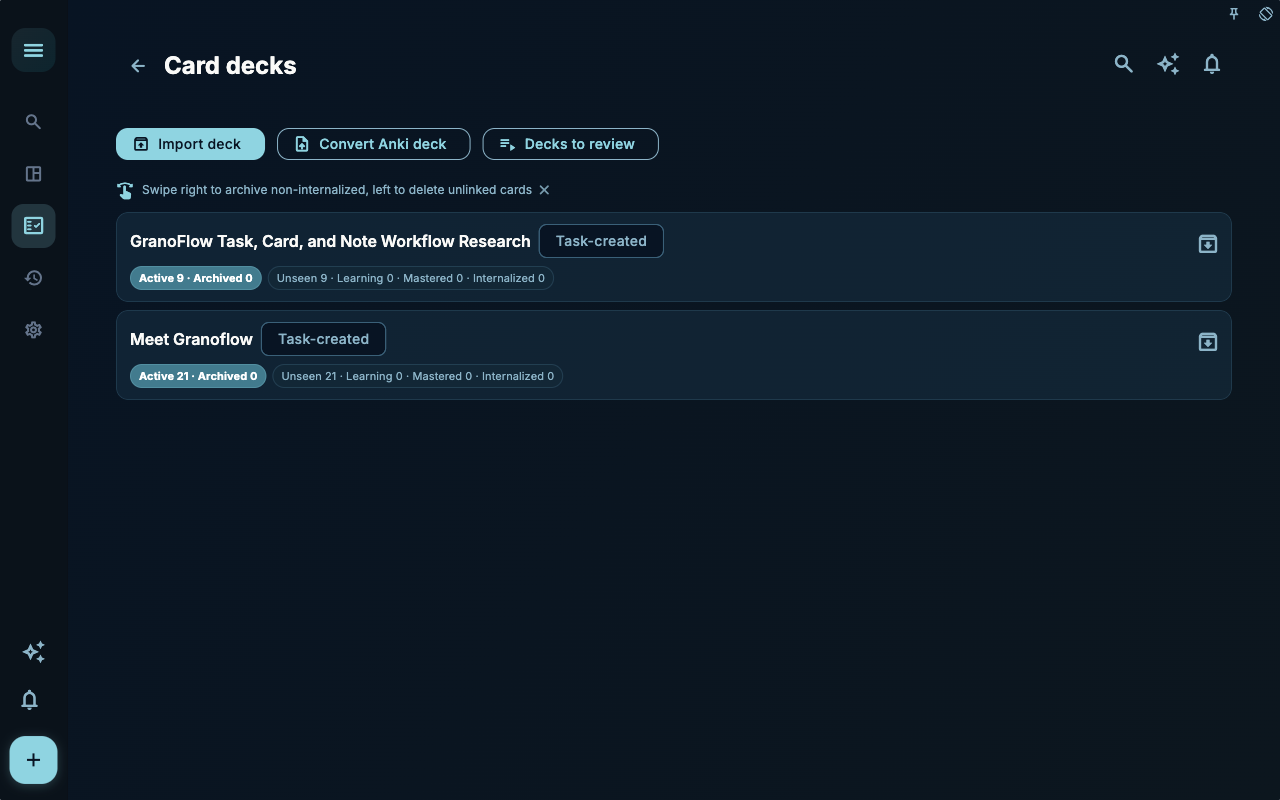
The deck management page shows each deck’s name, source, and learning status. In the image, there are two decks: one from task research and one for getting to know GranoFlow. Each deck displays the number of active cards, archived cards, unlearned, learning, learned, and internalized.
What matters most here isn’t how many decks you have, but whether they still match real use cases. If a deck hasn’t been practiced in a while and isn’t tied to any task, it might just be a “pile of stuff.” If it helps you handle a recurring type of task, it’s worth keeping.
Screen before importing
Section titled “Screen before importing”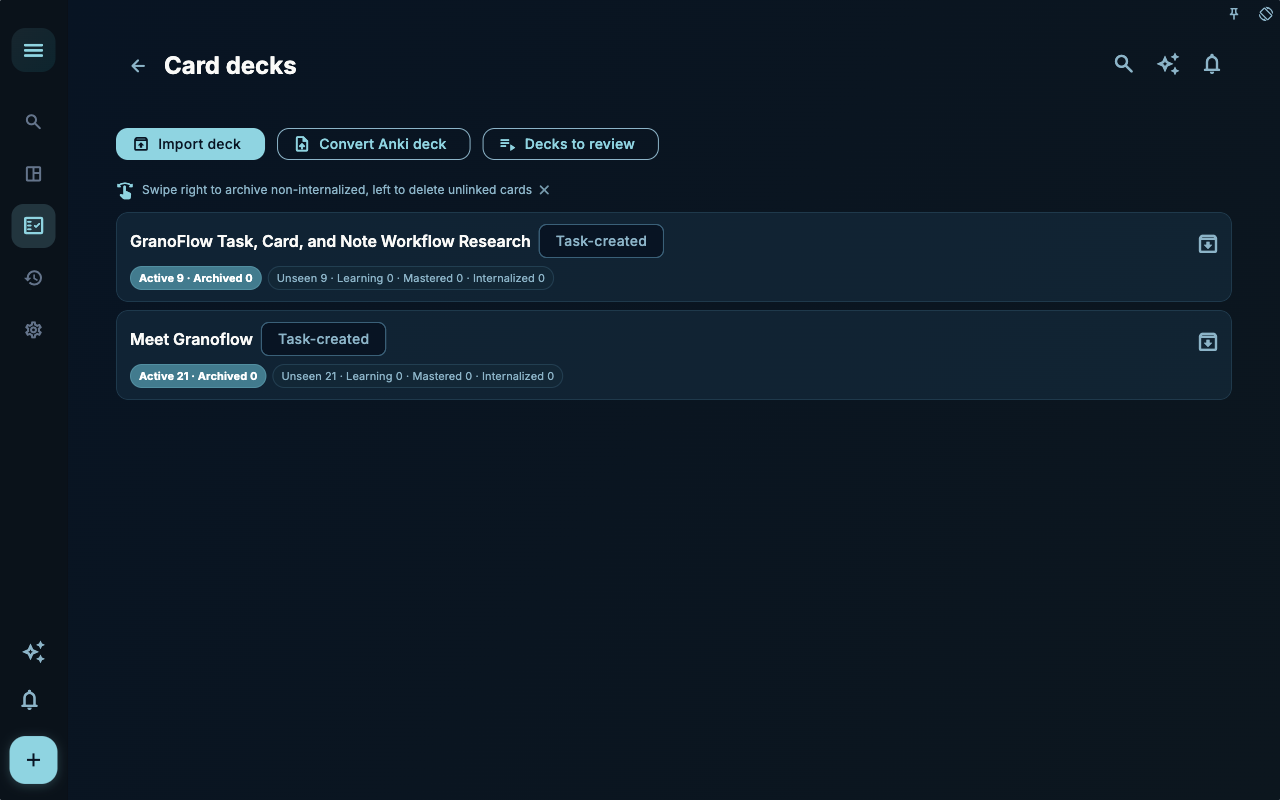
At the top of the page you’ll see “Import deck,” “Convert Anki deck,” and “Pending screening deck.” Importing doesn’t dump external content straight into your practice queue — it first puts it in a place where you can review it. That way you can remove cards that don’t fit you before deciding which ones go into an official deck.
This step is like sorting boxes before you move: not everything belongs in your new home. Especially with cards written by someone else — language, examples, and question styles may not suit you.
Don’t mix up the three file types
Section titled “Don’t mix up the three file types”| Type | Purpose | Good for | Not good for |
| --- | --- | --- | --- |
| .deck.grano | Deck package | Sharing or migrating a set of cards | As a full backup |
| .flow.grano | GranoFlow backup | Restoring local data | As a publicly shared package |
| Anki .apkg | Anki deck | Converting to GranoFlow-readable content via an offline tool | As a direct replacement for GranoFlow decks |
.deck.grano focuses on cards and decks — it’s not your entire GranoFlow data. For backups, use backup features. For sharing a set of cards, use deck export.
When Anki conversion makes sense
Section titled “When Anki conversion makes sense”If you already have Anki decks, you can use “Convert Anki deck” to turn them into material GranoFlow can process further. This entry is for migrating old material — not for blindly importing large numbers of cards.
After conversion, still check three things:
- Whether the questions fit GranoFlow usage scenarios.
- Whether the answers connect back to tasks, projects, or reviews.
- Whether images, audio, links, or other content works normally in your current environment.
If an Anki card is just for memorizing vocabulary or exam knowledge, it might not belong in GranoFlow. If it helps you form work decisions, review habits, or action reminders, keep it.
When to create a new deck
Section titled “When to create a new deck”| Situation | Recommendation |
| --- | --- |
| Only one or two scattered cards | Don’t create a new deck yet |
| Five or more cards around the same type of task | You can create a deck |
| You want to inspect external cards before using them | Use import and pending screening |
| You want to back up all data | Don’t use deck export — see backup features |
| You want to share a curated set of experiences | Export .deck.grano |
Give your deck a specific name. For example, “Project management” is too broad; “Deciding what to do when a project is overdue” makes it easier to know when to open it.
Next steps
Section titled “Next steps”After organizing your decks, head back to Practice, Mastery & Internalization for a short practice session. The real goal isn’t to have neat decks — it’s to have a few cards ready to use before your next action.