AI Assistance
AI is great at turning scattered input into clarity, but not at deciding what’s important for you. It’s more of an organizational assistant than a steering wheel.
A Real‑World Example
Section titled “A Real‑World Example”You can ask AI to break a meeting transcript into tasks and next steps, but whether you act on them today or assign them to a project is still up to you.
Set Boundaries Before AI Involvement
Section titled “Set Boundaries Before AI Involvement”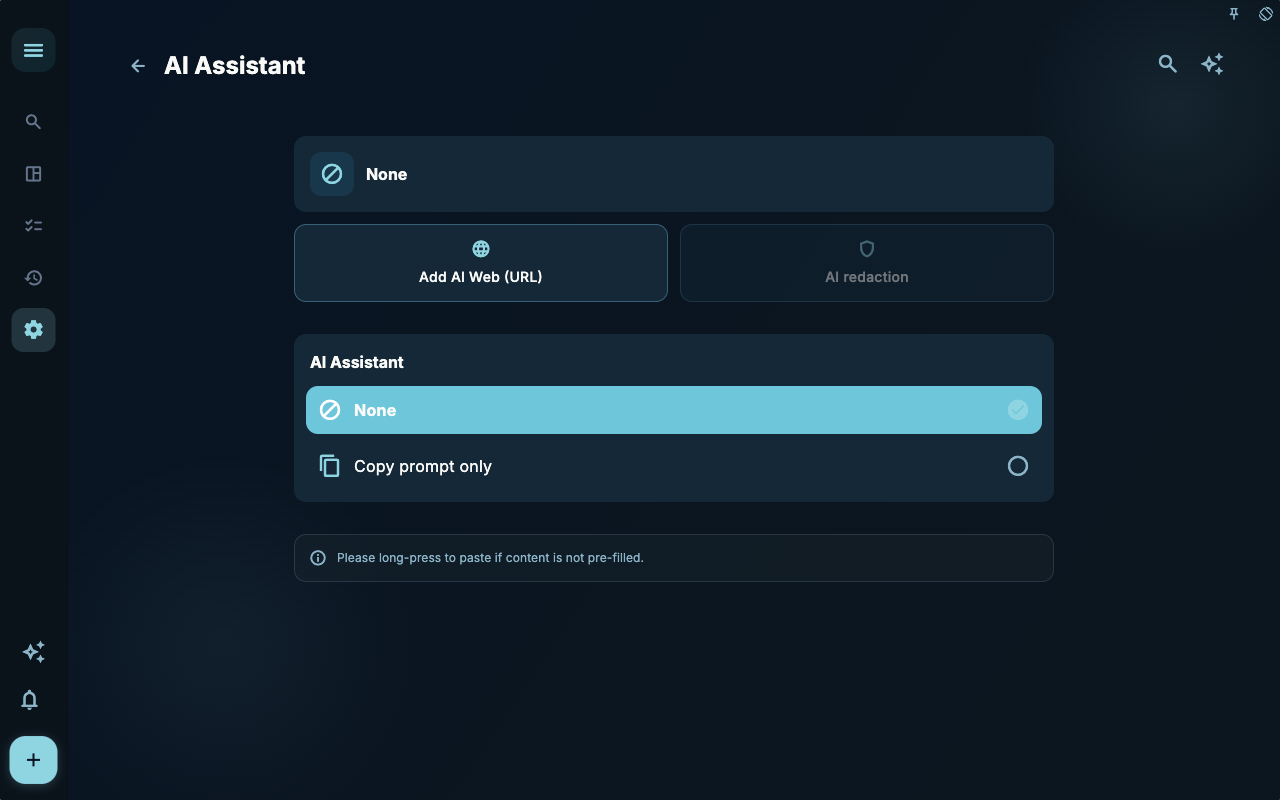
The AI Assistant Settings determine which assistant capabilities are available. Start here to confirm whether AI is part of your current workflow, then adjust the specific prompts.
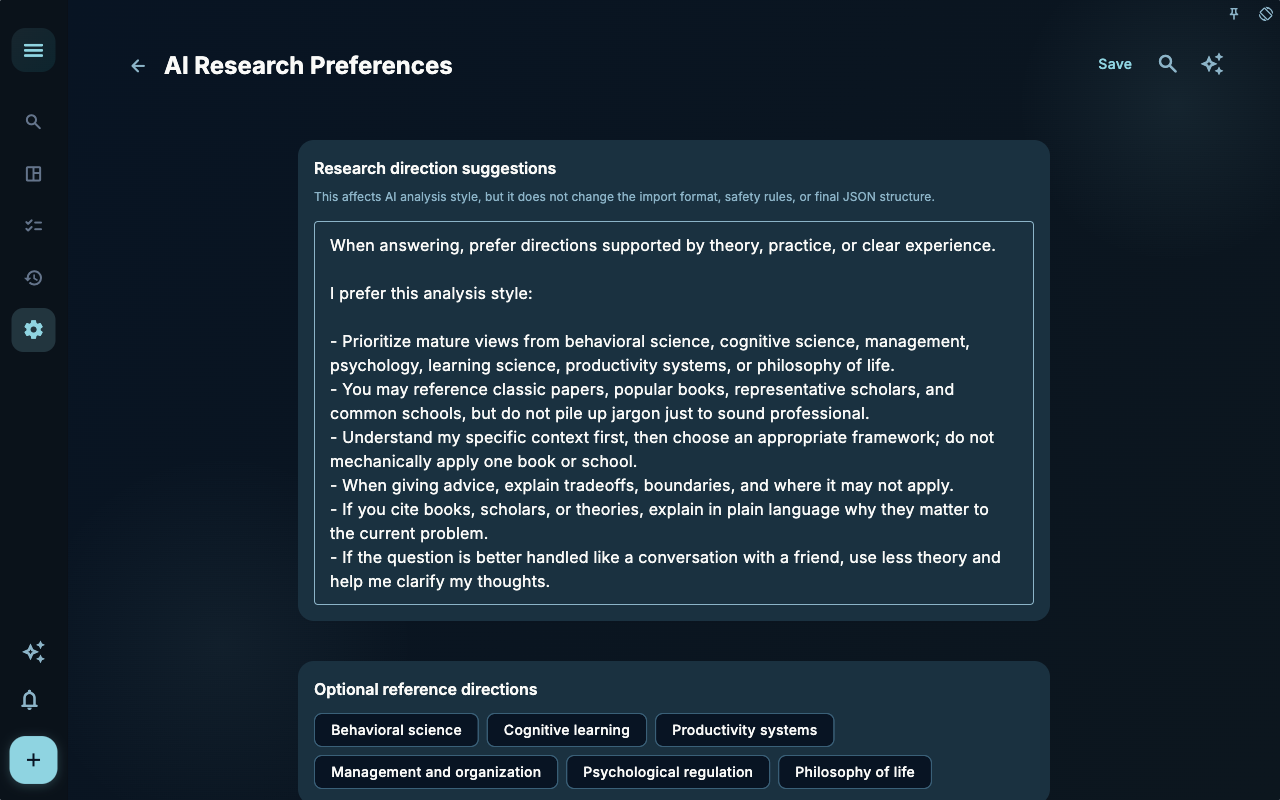
The Assistant Prompt lets you describe how you want AI to organize tasks, reviews, or titles. Longer isn’t always better – it just needs to be clear enough that AI rarely misinterprets your input.
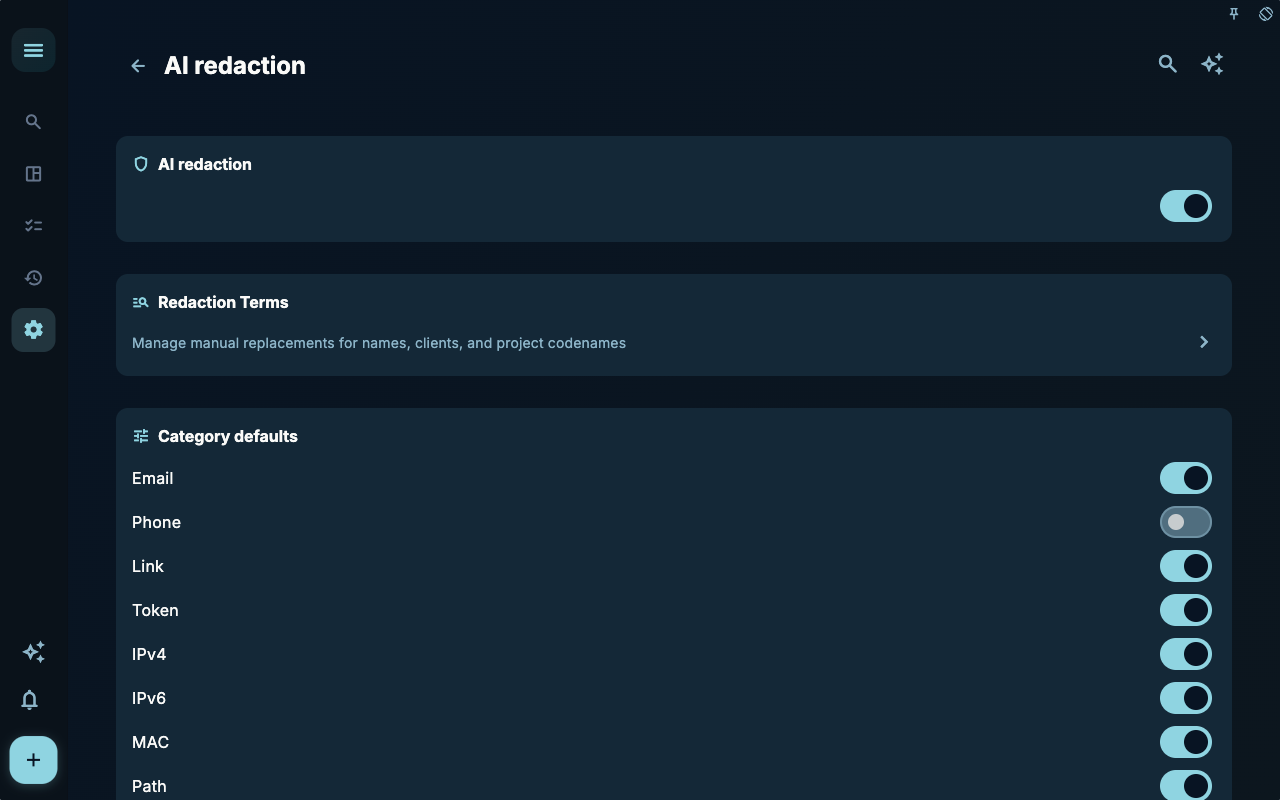
Redaction Settings handle content protection before data is sent. If you plan to let AI process real tasks or notes, think ahead about which terms shouldn’t appear as‑is.
How to Decide the Next Step
Section titled “How to Decide the Next Step”| Situation | What to Check First | Next Step | | --- | --- | --- | | Don’t know where to start | The current page title and main entry points | Pick only one item that relates to your current goal | | Result is wrong after an action | Status, empty state, access history, or sync progress | Go back one level and troubleshoot in order | | Worried about data impact | Backup, sync, account, or permission notes | Stop first, confirm the scope, then continue |
Boundaries
Section titled “Boundaries”The right order for using AI: provide clear input, review the organized result, then confirm the write‑in yourself.
Next Steps
Section titled “Next Steps”After reading this section, return to the task you were handling and choose just one minimal action to continue: log an input, check a status, or open the relevant settings to confirm once.