Daily Review
A daily review is not about writing a report of the day. A better use is: first see what actually happened today, then leave a few notes that your future self can use.
Many people start by asking “How did I do today?” In Granoflow, you can replace that with another question: “Which tasks were actually completed? Which times need correction? Before tomorrow starts, what do I want myself to remember?”
What’s in the Daily Review
Section titled “What’s in the Daily Review”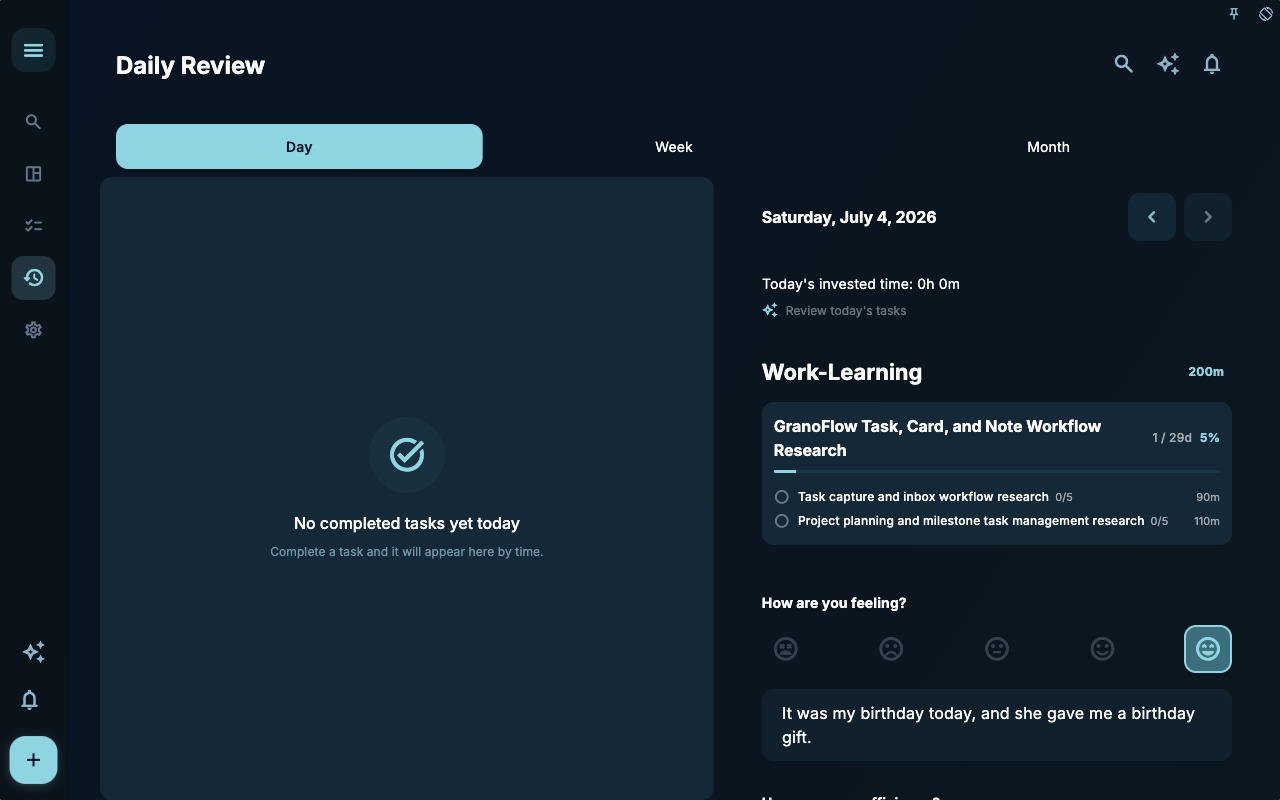 In this image, the left side is the completed tasks area for the day; the right side shows the date, today’s invested time, project progress, mood, and efficiency records. Even if there are no completed tasks on the left, the right side can still retain the day’s record and time information.
| Area | What you can judge from it | What to note | | --- | --- | --- | | Completed tasks | What you actually finished today | Counted by completion time, not due date | | Today’s invested time | Approximate recorded task time today | Overlapping time is not double-counted | | Flow time | Focus time you manually confirmed | Not automatically derived from task duration | | Mood and efficiency | A lightweight marker for the day | Just a record, not an evaluation | | Today’s note | Write down clues useful for tomorrow | Short phrases are enough, no need for a daily report |
Completion Time Matters More Than Deadlines
Section titled “Completion Time Matters More Than Deadlines”The daily review groups tasks by their actual completion time. If a task was due yesterday but you finished it today, it will appear in today’s review. If a task was completed at 23:58 yesterday, it still belongs to yesterday.
This rule is simple: the review records “when something actually ended,” not “when it was supposed to end.” This makes it feel closer to a real day.
A Real‑Life Scenario
Section titled “A Real‑Life Scenario”You open the daily review in the evening and see that the task “Research on collection and inbox workflow” is not marked as complete today, yet the progress of the research task still appears in the sidebar project. At this point, you don’t need to write “Today was a failure.” A more useful note might be:
Research was interrupted twice today. Tomorrow, start by organizing the inbox screenshots, then supplement the project planning cases.
This statement doesn’t judge you—it just makes the next steps clear. The most valuable part of a review often lies in these small reminders.
How to Write a Daily Review
Section titled “How to Write a Daily Review”| Action | What You’ll See | If Something’s Off | | --- | --- | --- | | Go to the review page and stay on the “Day” view | Current date, completed tasks, and the day’s notes area | Use the date button to switch to the correct date | | Look at completed tasks | Tasks completed today appear in the list | Go back to the task details to confirm whether the task is completed | | Calibrate time | Today’s logged time is closer to reality | Go to the task details and edit the start and end times in “Time Log” | | Write a few notes | Notes will be bound to this day | You don’t need to answer every question; save the most important sentence first |
If a task’s time is inaccurate, first go back to the details of that completed task, click “Time Log” to correct it. This will affect the task’s time block in the daily review and today’s logged time, and will also make the weekly and monthly reviews more accurate later. For full instructions, see Calibrate Time After Completion.
Flow Time and Time Invested
Section titled “Flow Time and Time Invested”Time invested comes from task time blocks. When two task times overlap, the overlapping portion is not counted twice.
Flow time is another manual record. It represents the focused time you have confirmed. You can fill it in the daily review or from the details of completed tasks for the day; the same day shows the same daily-level flow time.
AI Review Today’s Tasks
Section titled “AI Review Today’s Tasks”If you want to re-organize the review of today’s tasks, click “Review Today’s Tasks”. AI will take the recorded task times as read-only context and organize the domains, projects, and milestone progress involved for the day.
The content generated by AI will not directly modify your data. After you copy the results back to Granoflow, you need to confirm in the confirmation dialog before it is written into task titles, task reviews, daily domain reports, or optional new tasks. See Review Today’s Tasks for the full process.
No Tasks Completed for the Day
Section titled “No Tasks Completed for the Day”If no tasks are completed on a given day, the empty state simply says “No completed tasks recorded for this day.” You can still write your daily log, or switch dates to view other days.
The daily review isn’t about proving you were productive every day. It’s more like a sticky note: what happened today, and what you shouldn’t forget before tomorrow begins.
Next Steps
Section titled “Next Steps”The daily review covers today. To see patterns across multiple days, go back to the weekly and monthly reviews in Review Overview; to learn how to find the records you’ve written, continue with Records & Journal.