App Interface Overview
The App interface isn’t a feature everyone needs to turn on. It’s for users who want AI tools or scripts to access GranoFlow with explicit authorization.
A Real-World Scenario
Section titled “A Real-World Scenario”Local AI tools typically communicate via the local HTTP API or MCP; ChatGPT inside a browser requires the Connector; a mobile device on a local network still needs to consider addresses and access codes.
Two Checkpoints for the Local Interface
Section titled “Two Checkpoints for the Local Interface”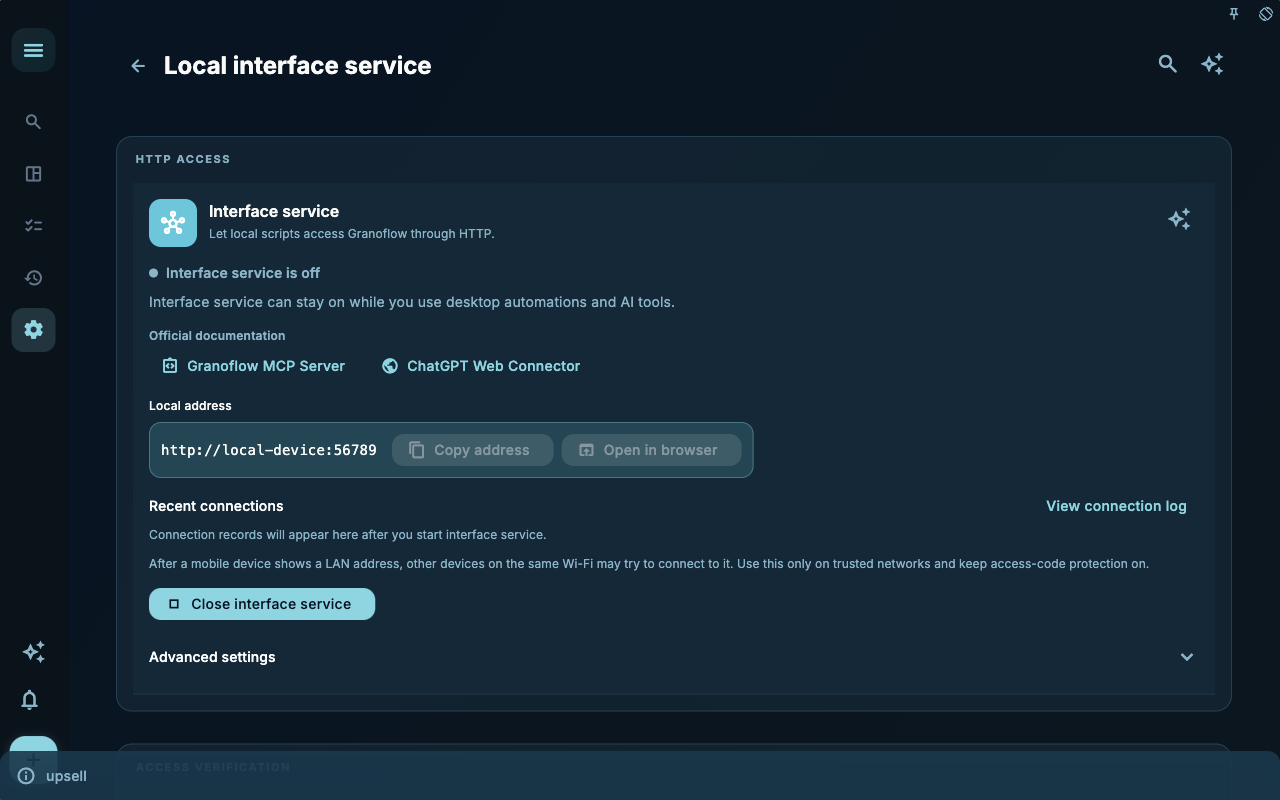
The Command-Line Tool Settings page is the starting point for the local interface. Here you’ll find the local address, access code, and interface status — confirm these before connecting any AI tool.
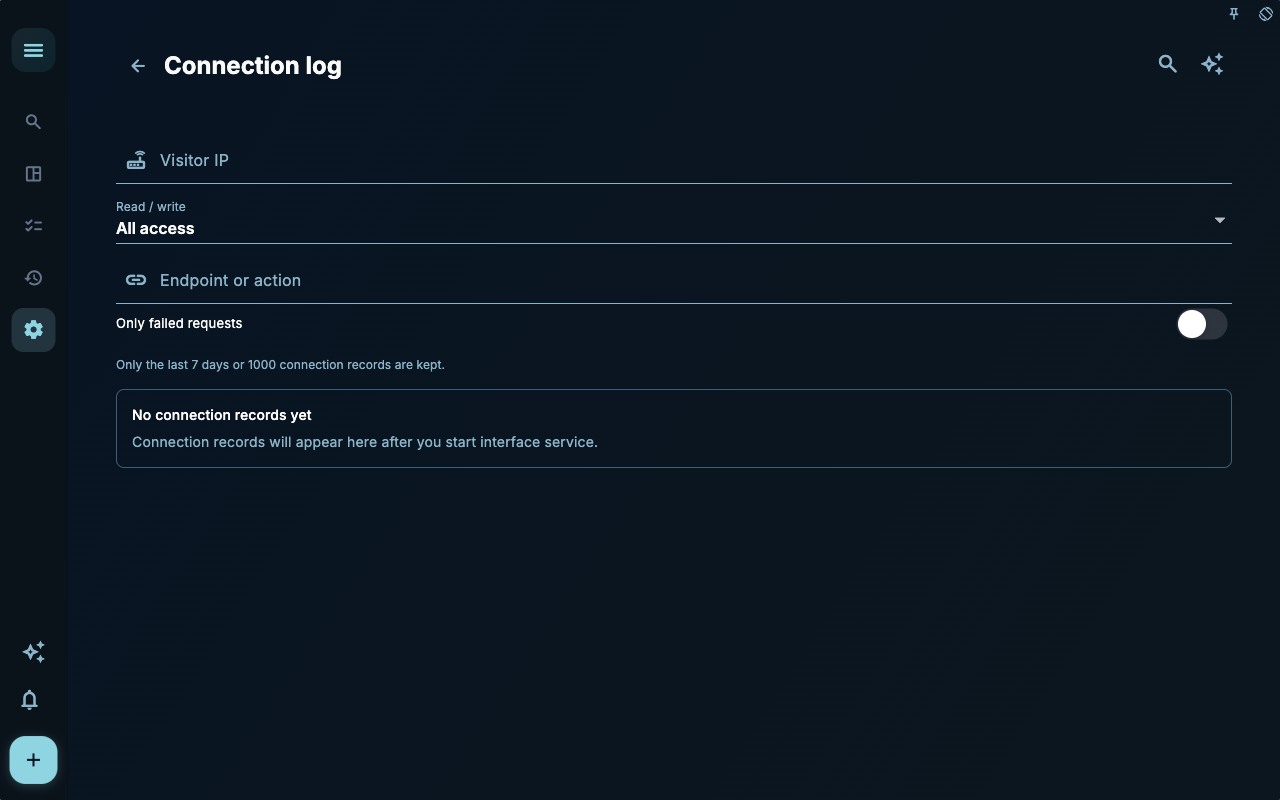
The Access Log is helpful for troubleshooting connection issues. Check if requests are reaching the system, being rejected, or coming from the expected tool — you can start diagnosing from here.
How to Decide the Next Step
Section titled “How to Decide the Next Step”| Your situation | What to check first | Next step | | --- | --- | --- | | Don’t know where to start | Current page title and main entry points | Only pick one item relevant to your current goal | | Results aren’t what you expected | Status, empty states, access logs, or sync progress | Go back one level and troubleshoot in order | | Worried about data impact | Backups, sync, accounts, or permission details | Stop, confirm the scope, then proceed |
Boundaries
Section titled “Boundaries”First identify where your AI is running, then choose the connection method.
Next Steps
Section titled “Next Steps”After reading this section, return to the task you’re working on and only take one small action: log an input, check a status, or open a related setting to complete a confirmation.